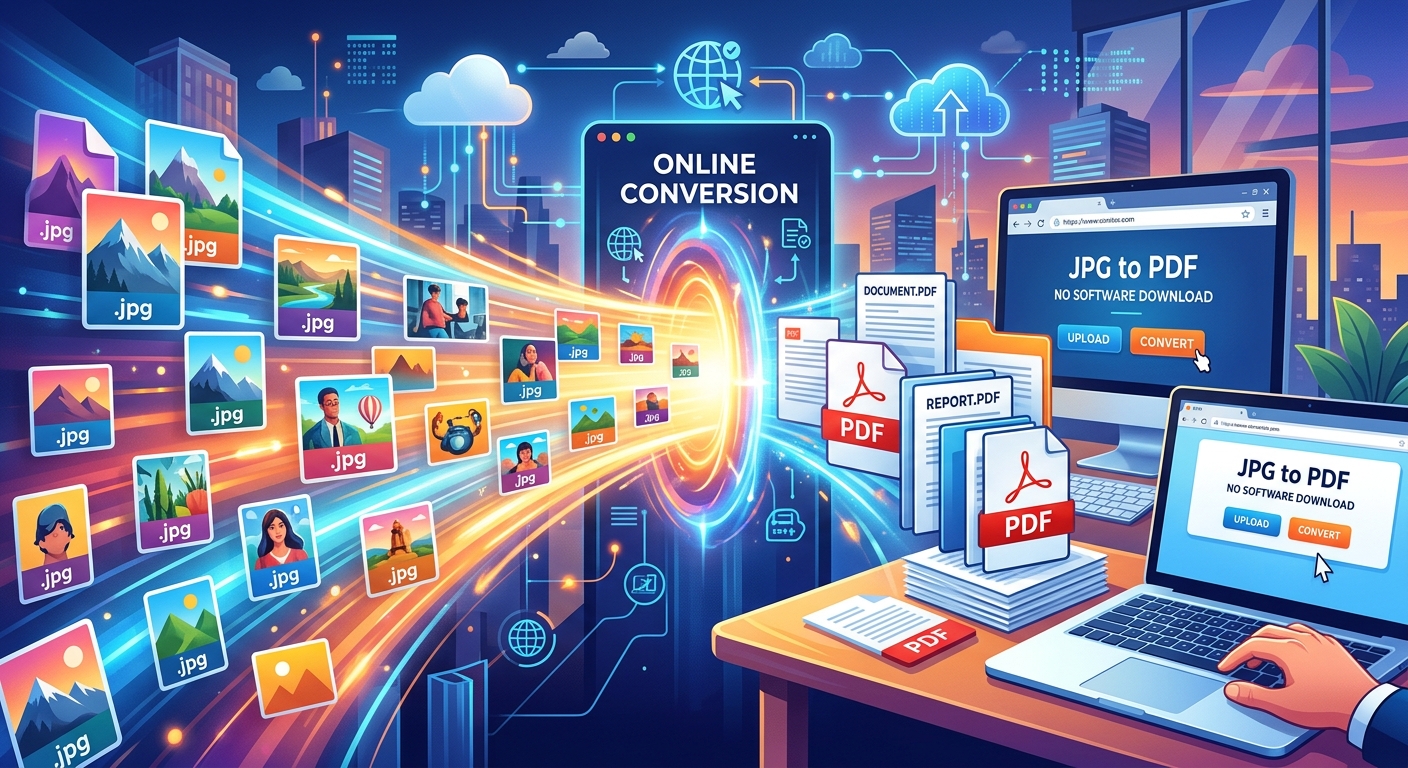
- You do not need to install any software to turn a JPG into a PDF.
- PDF is the right format for sending forms, receipts, and scanned documents.
- Browser-based converters work on any device, including phones and tablets.
- The whole process takes less than a minute once you know the steps.
- JPGs are still the better choice for photos you plan to edit or share online.
Your landlord needs the signed lease back by end of day. You photographed each page with your phone and now have a stack of JPG files sitting in your downloads folder. They asked for a PDF. You have no idea how to do that without downloading something you have never heard of, and the clock is ticking. This is one of the most common small panics in modern document life, and the answer is genuinely fast and free.
Why PDF Is the Better Format for Documents You Need to Send
JPG is a brilliant format for photographs. It compresses image data efficiently, keeps file sizes small, and renders beautifully on any screen. But it was built for images, not documents. When you send a JPG of a form or a receipt, the person on the other end receives a flat picture. They cannot add a digital signature, cannot merge it with other pages, and may run into printing problems because JPG files do not carry standard page dimension data.
PDF, which stands for Portable Document Format, was built specifically to look identical on every device, operating system, and printer it encounters. Margins stay where they should. Text remains sharp. A PDF you create on your phone looks exactly the same when it lands in someone's inbox on a desktop computer in a different country. That consistency is exactly why banks, employers, schools, and government offices all ask for PDF submissions as a default.
There is also a practical bundling advantage. If you photographed a five-page application form and have five separate JPG files, sending them as individual attachments creates immediate confusion. Converting them into a single PDF gives the recipient one clean, properly ordered file. Nothing gets lost, nothing arrives out of sequence, and the presentation looks professional rather than chaotic.
All You Need Is a Browser
No software installation is required. No account creation either. A browser is the only tool you need, and you already have one. Chrome, Firefox, Safari, Edge, and even mobile browsers on Android and iOS handle this process without any issues. The conversion work happens on a server, so the age or speed of your own device makes very little difference.
Browser-based converters have matured considerably in recent years. They reliably handle JPG files produced by smartphones, flatbed scanners, and digital cameras. The interface is usually simple enough that you do not need to read any instructions before using it. You upload a file, wait a few seconds, and download your PDF. That is genuinely the full process for most people.
One thing worth keeping in mind is privacy. Reputable tools delete your uploaded files from their servers after a short window, typically within an hour or so. For everyday documents like class notes or expense receipts, this is completely fine. If you are handling highly sensitive material, take a moment to check the tool's privacy policy before uploading.
Turning Your JPG Files Into a PDF: The Full Process
Open your browser and go to a free browser-based JPG to PDF converter, which handles the process without requiring you to create an account. The page will present either an upload button or a drag-and-drop area.
Click the upload button and select your JPG from wherever it lives. That might be your desktop, your downloads folder, or your phone's photo gallery if you are working on a mobile device. If your browser and the tool support drag-and-drop, you can also pull the file directly from your file manager and drop it onto the upload zone, which saves a few clicks.
If you have more than one JPG to combine, look for an option to add multiple files. Most good converters let you upload several images at once and rearrange them before generating the PDF. This is especially useful for multi-page forms where the order of pages matters. Take a moment to confirm the sequence is correct before proceeding.
After uploading, you may see a handful of settings. Page size is the most common. A4 is standard across most of the world, while Letter is the default in the United States and Canada. If you are unsure which applies, A4 is a safe universal choice. Some tools also give you orientation controls and image quality options. Once everything looks right, click the convert button.
For a single JPG, the conversion typically finishes in two to five seconds. A batch of ten or more images might take up to thirty seconds. When it is done, a download button or link appears. Click it, save the PDF to a folder you will remember, and the job is done. The entire process from opening your browser to having a finished PDF file rarely takes more than two minutes.
Understanding the Difference: JPG and PDF Side by Side
JPG vs PDF: Matching the Format to the Task
| Task | Best Format | Reason |
|---|---|---|
| Sending a signed form | Consistent layout on all devices and printers | |
| Sharing holiday photos | JPG | Small file size, supported natively by all photo apps |
| Submitting a multi-page application | All pages merge into one ordered, professional file | |
| Posting an image to a website | JPG | Browsers display JPGs inline without extra plugins |
| Scanning a receipt for expense reports | Accounting software and email clients expect PDF attachments | |
| Editing a product photo | JPG | Image editors open JPGs directly without conversion steps |
When Keeping Files as JPGs Is the Right Call
PDF is not always the answer. JPG has genuine strengths, and there are situations where converting away from it would just create extra work for no benefit.
Messaging apps are one clear case. WhatsApp, iMessage, and similar platforms are built around images. Sending a PDF of a birthday photo to a friend would be puzzling and inconvenient. The JPG is the natural and expected format in that context, and it displays immediately in the conversation without the recipient having to open a separate viewer.
If you plan to edit the image later, keep it as a JPG. Photo editors open JPG files instantly and give you full access to all their tools. Converting to PDF and then back again adds unnecessary steps and can introduce a small loss in image quality each time the file is re-compressed. The JPEG compression standard was designed for efficient delivery and display of photographic images, and it does that job best when left as a JPG throughout its lifecycle.
Storage is another practical reason to stay with JPG for personal photo collections. A folder of JPGs from a day out takes up a fraction of the space the same images would occupy as PDF files. If you are archiving thousands of personal photographs with no intention of formally submitting them anywhere, there is no case for converting them.
The guiding principle is simple. If the file is headed somewhere formal, a job application, a tax document, a rental agreement, convert it to PDF first. If it is a photo being shared, posted, or kept for personal use, leave it as a JPG and spare yourself the extra step.
Choosing the Right Format Before You Hit Send
The best time to think about file format is before you start the submission process, not at the moment you are about to attach a file. Building a small habit around this avoids a lot of last-minute scrambling.
Any time you scan something with the intention of sending it formally, convert it to PDF before attaching it to an email or uploading it to a portal. This covers invoices, identification documents, insurance claims, school assignments, and medical forms. These are documents that need to print cleanly and look organized on the receiving end.
If someone sends you a JPG and you need to include it as part of a larger document package, convert it first. Merging several JPGs into a single PDF before sending keeps your communication tidy. The recipient opens one file, sees everything in order, and does not have to hunt through multiple attachments to piece together what you sent.
For receipts specifically, getting into the habit of converting them to PDF as soon as you scan or receive them pays off over time. PDF receipts are easier to organize in folders by month or category, attach cleanly to expense reports, and remain legible when printed months after the fact.
None of this requires any software on your computer or phone. It requires a browser, a file, and less than a minute. Once you have done it once or twice, the process becomes completely automatic, and you stop thinking about it as a task at all. That is exactly how managing your documents should feel.