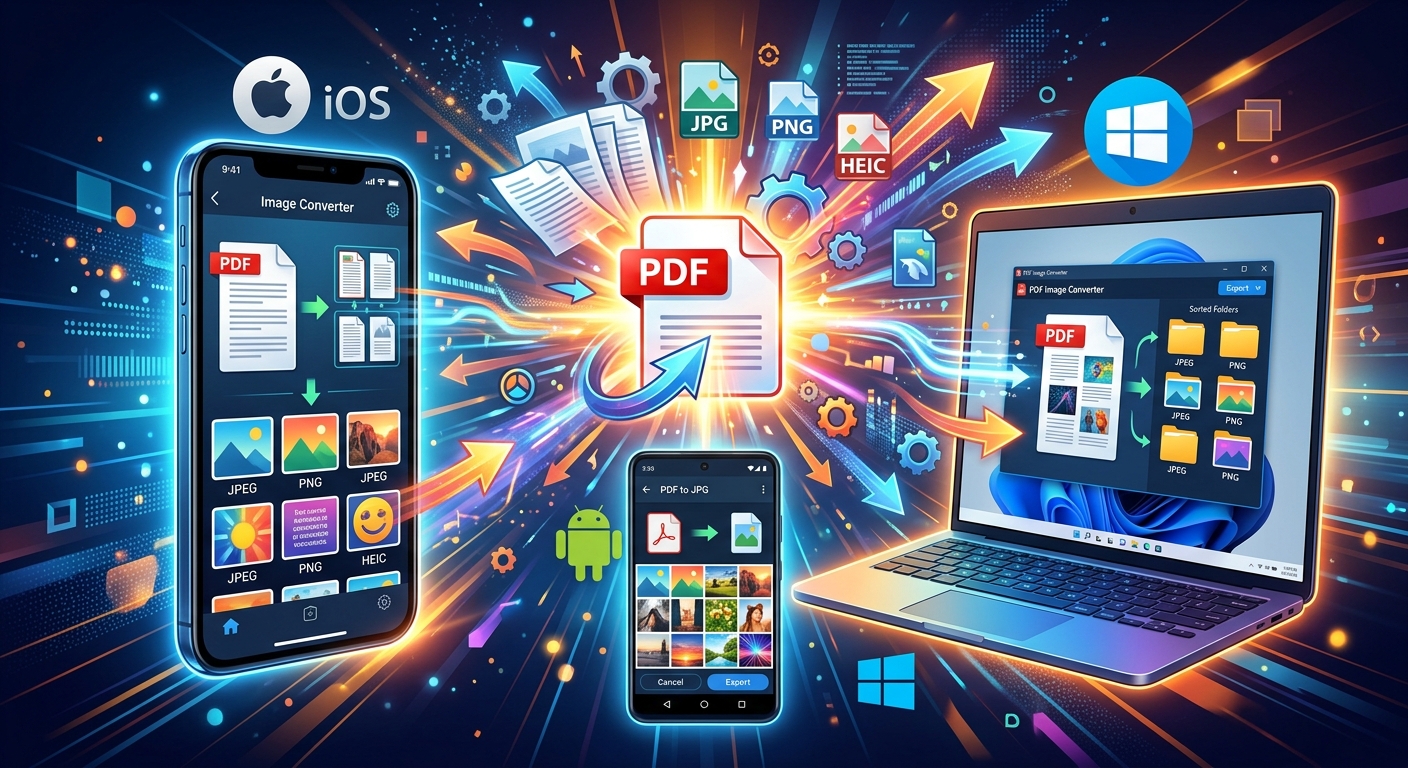
You have a PDF and you need an image out of it. It sounds like a one-click job. Somehow, it never quite is. The path from PDF to image file depends entirely on which device you are on, and the default output format is different on each one. On iPhone you might end up with a HEIC file that confuses half the people you send it to. On Windows you might find yourself taking a screenshot and cropping by hand. This guide gives you the real steps for each platform, plus a clear word on which format to actually use when sharing matters.
- iPhones save images in HEIC by default, which can cause compatibility problems when sharing with non-Apple users.
- Android and Windows both have built-in methods for pulling image files from a PDF without installing extra software.
- JPG is the safest format for cross-platform sharing, but HEIC works well when you stay entirely within the Apple ecosystem.
Why the Output Format Matters Before You Export
A PDF is not an image. It is a document container that holds text, graphics, vector shapes, and photos all layered together. When you export a page as an image, the process flattens everything on that page into a single raster file. The format of that file, whether JPG, PNG, or HEIC, determines how it behaves once it leaves your device.
JPG is compressed and universally readable. Every app, browser, and email client handles it without hesitation. PNG preserves crisp edges better, which matters for diagrams and screenshots, but the files are larger. HEIC is Apple's preferred format and delivers excellent quality at smaller file sizes, but it is not supported everywhere outside the Apple ecosystem. Knowing this upfront saves you the frustration of sending someone a file they cannot open.
Getting Image Files from a PDF on iPhone
The Built-In Files App and Share Sheet Route
The most direct method on iPhone requires no app installation at all. Open the PDF in the Files app, then tap and hold on the file to bring up the context menu. From there, choose Share and look at the available options. On iOS 16 and later, you can open the PDF directly in Files, use the markup tool to select an individual page, and export a cropped image straight to your camera roll.
For a single-page PDF, another reliable approach is opening the file in Safari, taking a full-page screenshot, and cropping the result to the page boundaries. It is not the most elegant method, but it works without any additional steps for a quick one-off export. If you need a clean image from a specific page in a longer document, the markup export route is more accurate and less fiddly.
Third-party apps from the App Store fill the gap when you need more control. PDF Viewer, Adobe Acrobat Reader, and several lightweight utilities all support page-to-image export. Most are free for basic tasks. The built-in route is usually faster, though, unless you are converting documents regularly.
Understanding HEIC and How It Affects What You Share
Here is the thing about iPhones and images. iOS saves camera photos in HEIC format by default. HEIC stands for High Efficiency Image Container, and it is built on HEIF compression developed by the Motion Picture Experts Group. The format produces noticeably smaller files than JPG at comparable quality, which is exactly why Apple adopted it. But when you share a HEIC file with someone on Windows or Android, there is a real chance they will see an error message or a blank thumbnail.
If the image is staying on your iPhone, going into your Photos library, or being sent to another Apple device, HEIC is completely fine and actually preferable. But if you need to attach it to an email for a mixed audience, post it to a website, or hand it to someone on a Windows machine, JPG is the right call.
There is also a scenario where HEIC is exactly what you want. If you are converting a PDF page to an image for your own iPhone-based workflow, keeping it in HEIC means a smaller file that fits neatly into your photo library without eating through your storage. You can run a PDF to HEIC conversion right in the browser, without installing anything, and the output lands as a native-feeling image on your device. That is genuinely useful if you scan a lot of documents and storage space is a concern.
To change your iPhone's camera default from HEIC to JPG, go to Settings, then Camera, then Formats. Switch from High Efficiency to Most Compatible. This only affects new camera photos going forward, not PDF exports, but it removes the compatibility confusion for everyday shots.
Pulling Images from a PDF on Android
Android does not have a single built-in PDF-to-image tool baked into the operating system the same way iOS does, but Google Drive makes up most of the difference. Upload your PDF to Drive, open it in the Drive viewer, and you can navigate through the pages. The Drive viewer does not export image files directly, but opening a page and capturing it with the Android screenshot tool gives you a clean PNG that saves to your gallery automatically.
The more reliable path for Android users is pairing Google Drive with a browser-based converter. Open Chrome, visit a conversion tool that accepts PDFs and exports JPG or PNG, upload your file, and download the result. This approach works across every Android device regardless of the manufacturer or the Android version running on it. No app purchase required.
Adobe Acrobat's free Android app also handles this task well. Open the PDF, tap the three-dot menu at the top, and look for the Export PDF option. The free tier handles image export for standard documents. For anyone who regularly needs to pull images from PDFs, it is worth keeping installed alongside the browser-based option.
One area where Android handles this better than iPhone is format flexibility at the point of export. Because Android is more open about file types, most apps and tools let you choose between JPG and PNG before the file is created. You are far less likely to end up with an incompatible format by accident.
Exporting PDF Pages as Images on Windows
Windows gives you several workable paths without buying any software. The Snipping Tool, improved substantially in Windows 11, is the fastest option for casual exports. Open your PDF in Microsoft Edge, which is the default browser on Windows 10 and 11 and happens to have a very capable built-in PDF viewer, navigate to the page you want, and use the Snipping Tool to capture exactly the area you need. Save the result as JPG or PNG and you are done in under a minute.
Microsoft Edge itself has a feature that most users walk past completely. Open your PDF in Edge, right-click anywhere on a page, and you will see an option to copy the page as an image. You can paste it directly into Word, an email, a presentation, or any other application that accepts image input. For one-off needs this is faster than any third-party tool.
For converting an entire PDF into a series of image files, one per page, a browser-based converter is the most practical option on Windows. Open the tool in Chrome or Edge, upload the PDF, and download a ZIP archive containing numbered JPGs. This repeatable workflow handles large documents without requiring any installation, and the output files are already named in page order so they stay organised.
Windows also ships with Microsoft Paint and the Photos app, neither of which exports directly from PDFs but both of which are useful for adjusting images after the initial export. If you need to resize an image, trim its edges, or convert it from one format to another after pulling it from a PDF, Paint handles those tasks with zero setup.
Matching the Right Format to Your Actual Situation
The choice between JPG, PNG, and HEIC comes down to two questions: where is the image going, and who is receiving it. JPG wins for email attachments, web uploads, and anything going to a mixed audience of iPhone users, Android users, and Windows users. The compression means slightly softer edges compared to PNG, but for scanned documents and photographed pages the difference is not visible.
PNG is the better pick when the PDF page contains text, charts, or line art. PNG uses lossless compression, which keeps text sharp and prevents the muddy artefacts that can appear in JPG files saved at lower quality settings. A diagram exported as PNG will look noticeably crisper when zoomed in than the same image saved as JPG.
HEIC makes the most sense when you are working entirely within Apple's ecosystem. If the image moves from your iPhone to iCloud and then to a Mac or another iPhone, HEIC gives you better quality at a smaller file size without any compatibility risk. The moment the recipient is on Windows or Android, switch to JPG.
The Platform You Are On Shapes Every Step
iPhone gives you the most seamless experience for keeping images within Apple's world, but its default format creates friction the instant someone outside that ecosystem tries to open the file. Android offers more flexibility at the point of export but fewer native tools, so a browser-based converter fills that gap cleanly and reliably. Windows has the most capable built-in utilities for this task, with Edge and the Snipping Tool covering most situations, though multi-page exports still benefit from a dedicated browser tool.
Across all three platforms, the rule is consistent. If you know the recipient is on an Apple device, HEIC is efficient and perfectly native. If you have any doubt about the recipient's setup, export as JPG. It opens everywhere, travels well through email, and will not leave anyone staring at an unsupported file error.
The conversion itself takes under a minute regardless of which platform you are on. The part that used to take longer was knowing which path to take before starting. Now you do.